
First boot
Boot the ISO on generic x86 or a T2 MacBook Pro, complete first-run, and get onto Wi-Fi.
Booting
Plug the USB in, hold your boot-menu key (F12 on most Dells,
F9 on HP, Option on Intel Macs), pick the vinOS entry.
A few seconds later the console-mode greeter appears while greetd resolves the autologin. You’ll blink past it — it’s here for completeness so you know what’s normal.
On a T2 MacBook Pro (2018/2019/2020 Intel), the internal keyboard
and trackpad work out of the box thanks to the shipped linux-t2
kernel. Wi-Fi comes up after a firmware warm-up — expect 15–40 seconds
on first boot. See T2 wifi troubleshooting
if it doesn’t.
On generic x86_64, everything except NVIDIA optimus laptops “just works”.
NVIDIA users may need to add nomodeset to the boot line the first
time; once installed, vinos-install-common handles the driver setup.
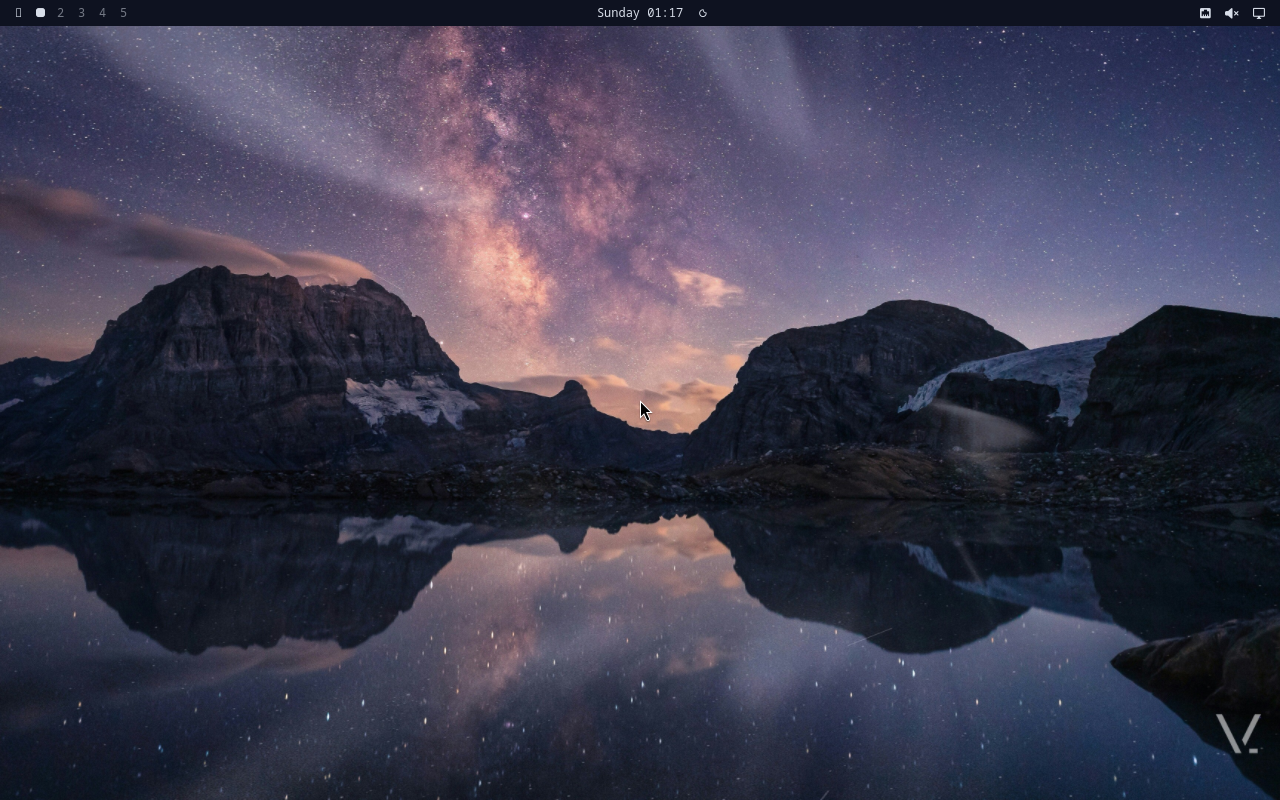
Once autologin fires you land on the default cosmos desktop — waybar across the top, walker dormant, cosmos wallpaper filling the screen.
First-run flow
The first login autostarts vinos-welcome in a floating foot window.
It’s a walker-dmenu picker with these tasks:
- Connect Wi-Fi — opens the
impalaTUI (Super+Ctrl+W later). - Pick a theme — cycles the 10 shipped themes; default is cosmos.
- Install AI bundle — pulls Ollama, aichat, claude-code (~2 GB).
- Install dev bundle — postgres, docker, mise, common language runtimes.
- Set your keys — walks you through Anthropic + optional local model choice.
- Enable routines — pick which of the 5 starter routines to activate.
Skip any of them. Rerun the whole flow any time:
$ vinos-welcome
Wi-Fi if welcome bugs out
If the picker died before you got online, hop into impala directly:
$ vinos-launch-wifi
Or the keybinding Super+Ctrl+W. The TUI is arrow-driven — highlight an SSID, hit Return, type the password. iwd stores the credential; next boot reconnects automatically.
Verifying the install
Once online, run the built-in health check:
$ vinos-doctor
Expect a mix of PASS / FAIL / SKIP lines grouped by section. FAILs are the actionable ones — each names the exact thing missing:
os-release identity
  PASS NAME=vinOS
  PASS ID=vinos
  PASS ID_LIKE=arch

base packages
  PASS base-devel
  PASS git
  PASS curl
  PASS wget
  PASS rsync
  PASS openssh
  ...

summary: PASS=27 FAIL=0 SKIP=2
A green run means you’re on the happy path. If FAIL rows appear, jump to troubleshooting and use the FAIL row as your search term.
Next: set your API keys.